
Campaigns
A campaign is an authored, linear sequence of skirmish missions. Each mission is a full skirmish setup (map, game, players/AI, mod options, unit restrictions) plus a Markdown briefing, objectives, and optional media — a panorama backdrop, side graphic, briefing voiceover and intro cutscene. Playing a mission launches it like any other skirmish; on exit Coilbox works out whether you won or lost and advances your progress.
A mission can also carry a scenario, which is what puts spawns, triggers, objectives and dialogue inside the game rather than only in the briefing. See Missions that play a scenario.
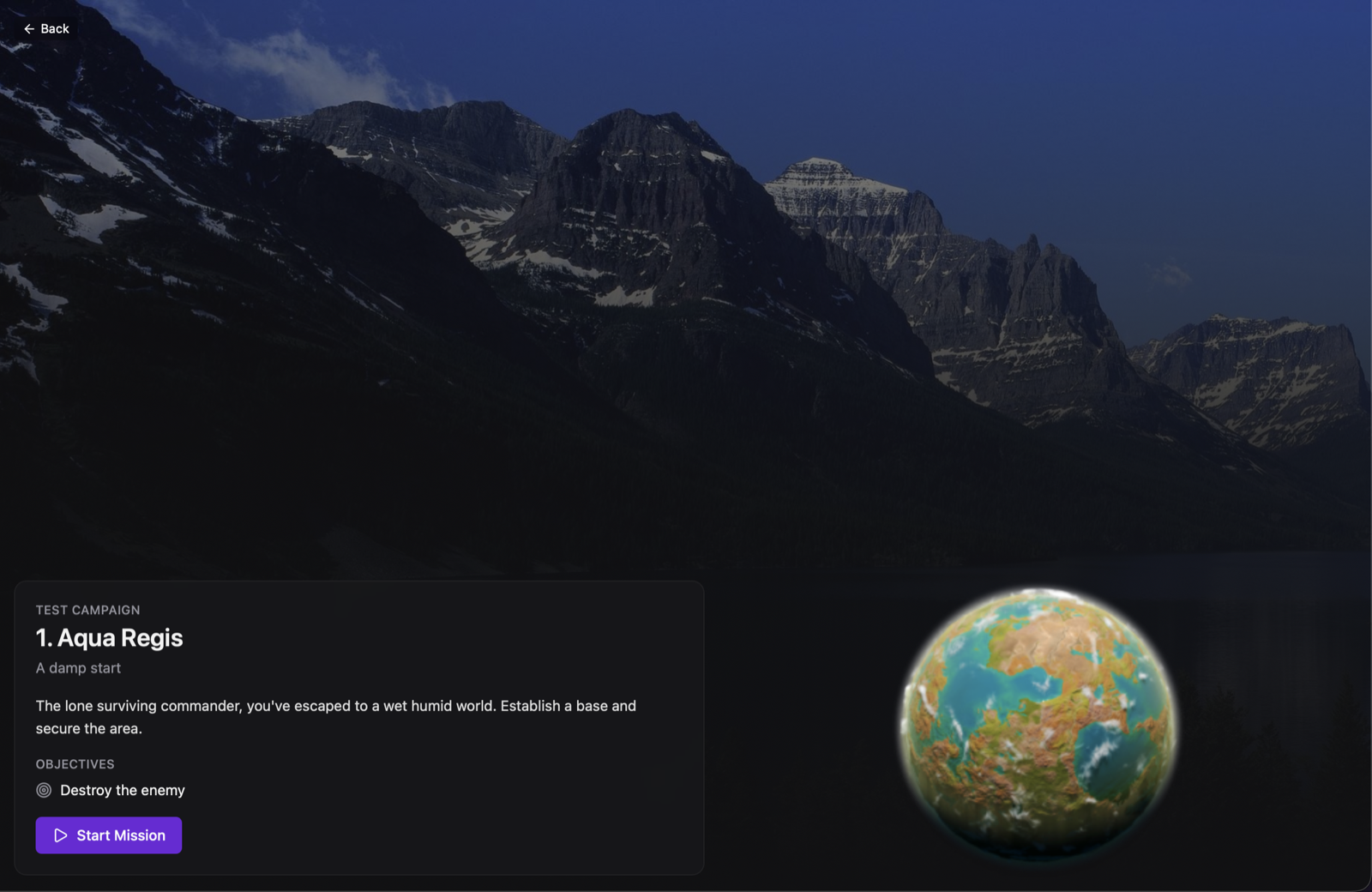
Everything below is about authoring and shipping those missions — the mission is the unit of work in a campaign, so most of the detail (setup snapshot, briefing media, unit restrictions, win/loss) is per-mission.
Author a campaign
The Campaign Builder is an advanced-mode tool: turn on Advanced mode (Settings > General) to see Campaign Builder in the sidebar. From there you can create a campaign, add missions, and edit each mission's briefing, objectives, panorama and skirmish setup.
Step by step
- Turn on Advanced mode — Settings > General. Campaign Builder now appears in the sidebar (it lives in its own group, not under Play).
- Set up a skirmish preset first. A mission reuses a Singleplayer preset as its starting point, so go to Play > Singleplayer, configure the map, game, AI opponents, teams and mod options you want, and save it as a preset (the presets drawer, button next to Spectate).
- Create a campaign — Campaign Builder > New. Give it a title; optionally add a campaign icon and background image.
- Add a mission and open its editor. Attach the preset from step 2 — this snapshots its whole setup into the mission (see the note below). Then write the mission's briefing, objectives, and add any media.
- Repeat for each mission. Missions play in the order you list them.
- Play-test from the Campaigns list (visible once the campaign exists). Each mission launches like a normal skirmish; on exit Coilbox works out win/loss.
- Export the campaign to a single
.jsonto share it, or bundle it into a distribution (both below).
A mission's skirmish setup is a snapshot: when you attach a preset to a mission, its full configuration (map, game, participants, start positions, mod options) is copied in at that point. Editing the source preset later does not change missions that already used it — a campaign always plays the setup it was authored with.
Mission media
Missions carry more than a still panorama:
- Briefing — authored as Markdown. Embed media inline by relative path with the image syntax:
shows an image, and a source ending in an audio or video extension renders an<audio>/<video>player instead (,). A link tohttps:,mailto:ortel:opens in the reader's browser, mail client or dialler. Any other link is refused, because Coilbox has no back button to return from a page drawn over it, so link a bundled file with the image syntax above rather than as a link. - Panorama and side graphic: each can be a still image, a looping muted video, the mission's map as a live 3D preview, or one of the mission's game's units as a spinning 3D model. Pick the source in the mission editor. If the player's install can't draw the chosen unit, the briefing shows that slot's image instead.
- Voiceover (audio) and cutscene (video) — optional players shown on the briefing screen.
How the files are stored depends on where the campaign comes from:
- Local (Campaign Builder) campaigns import media into app-data: images are decoded and re-encoded, while audio/video are copied verbatim (they're streamed to the app, never re-encoded or inlined as data URIs).
- Bundled / distribution campaigns reference files by relative path from the
.coilbox/folder (a"local"media reference) — the same mechanism a distribution profile uses for welcome-screen media. This is how a campaign ships audio/video, which are too large to inline (see Export / import below).
Unit restrictions
Each mission can disable specific units via Restricted Units in the mission editor. These are engine-level [RESTRICT] Limit=0 entries, so:
- They apply to every team, including enemy AI — there's no way to restrict units for the player only.
- Unknown unit internal names are silently ignored by the engine.
Use this for scripted difficulty (e.g. no artillery in mission 1) rather than as a player-only handicap.
A scenario has restrictions of its own, which are a different mechanism. Those are enforced by the mission runtime, bind only the teams the scenario declares, and can be lifted mid-mission. Restricted Units here stays what it always was.
Missions that play a scenario
A mission wraps a scenario and adds presentation. The scenario is everything in the game (spawns, zones, triggers, objectives, dialogue), and the mission is everything the player sees before the engine starts (briefing, panorama, side graphic, voiceover, cutscene). A mission with no scenario is the kind campaigns have always had, and still plays as an ordinary skirmish. Nothing needed migrating.
Author the scenario first, in the Scenario Builder, then attach it. Two ways:
- From scenario beside the Missions header builds a whole new mission around a scenario, titled after it.
- The Scenario field in a mission's editor attaches one to a mission you already have, with Attach scenario or Change scenario.
Attaching copies the whole scenario document into the mission and sets the mission's game and map from it, the same way attaching a preset snapshots its setup. Editing the source scenario afterwards does not reach a mission that already attached it. The mission editor says so: it shows Matches the stored scenario, or the date the attached copy was taken and the date the stored one was last edited, with an Update to latest button. Detach takes it off and leaves the mission a plain skirmish.
A scenario's dialogue clips stay in coilbox's own store rather than inside the mission, so deleting a scenario a campaign mission uses keeps its clips behind for that mission. The builder says which of the two it is doing when you press delete.
An export carries every attached scenario and its dialogue clips, and import writes the clips back. See Export / import. Bundling is the gap: a bundled campaign carries its scenarios but not their portraits and voice clips, so its radio messages play silent (issue #877).
A scenario can vary by difficulty, and then the player picks a level on the mission's briefing. The choice is the campaign run's, not the mission's: it holds for every mission after it until the player changes it, and it is saved with their progress, so a bundled campaign nobody can edit is still playable at every level. See Difficulty.
Which game can play a scenario mission, and what a game has to do to play one itself, is the mission runtime's business rather than the campaign's.
Units from the unit builder
A campaign can bring its own units, made in the unit builder. Under Units in the campaign editor, press Attach unit and pick one of your saved units. Every mission in the campaign then launches with it.
Attaching takes a copy, the same way attaching a preset snapshots its setup. The copy is the unit already built: its model, unit definition, script and the rest of what a game folder holds for it, plus the unit's own document. Coilbox stores it under campaign/units/<campaign id>/ in its data folder. Editing the unit in the builder afterwards does not change the campaign. The row says Changed in the library when the builder's copy is newer, and Update from library takes a fresh copy. Nothing else ever does.
The copy carries the unit's atlas only when it comes from an atlas pack. The bundled atlas ships with coilbox, so a unit built on it carries none. An imported unit, or one that mixes parts with lifted pieces, always carries its own textures.
When a mission starts, coilbox writes a game of its own, coilbox-lego-campaign-<campaign id>.sdd, that depends on the mission's game and holds the campaign's units. It is written against the exact game the mission names, so it is rewritten when that changes, and left alone when nothing has. The mission launches as that game. A mission that plays a scenario plays it on top of the same game. The replay records that game's name rather than the base game's.
A unit enters play through the builders picked for it under Built by. Some games never read that list. Beyond All Reason and Zero-K are two. The briefing names what was left out after Start Mission, the same lines the Test drawer shows.
The mission editor's Restricted Units lists the campaign's units with the game's own, under the builders that build them, so a mission can hold one back like any other unit.
This is singleplayer only. A game coilbox writes on one machine cannot be synced to a lobby.
Export and import carry the copies. The bundled atlas is never put in the file, because it ships with coilbox. A copy built on an atlas pack carries its atlas, and if a copy arrives without it, the install gate asks for that pack.
Export and import
A campaign can be exported to a single .json file (Campaign Builder > a campaign > Export) for sharing. The export format:
{
  "format": "coilbox-campaign",
  "formatVersion": 1,
  "campaign": { "...": "the full Campaign document" }
}
Any campaign images are inlined as base64 data: URIs, so the file is self-contained — no separate images to send along. Each unit copy is carried the same way: export puts its unit.json and textures into the file, and import writes them back. Import (Campaign Builder > Import) reads the same file back and validates it before adding it as an editable local campaign; a malformed or unrecognised file is rejected with an inline error rather than crashing anything.
Audio and video are not inlined (they'd be far too large, and can't be streamed from a data URI). A single-file export of a campaign that uses imported audio/video therefore keeps references that only resolve on the machine that authored it. To distribute a campaign with audio/video, bundle it (below) and ship the media files alongside it, referenced by relative path.
A campaign carrying a scenario is written in a different shape. Export writes a coilbox container, "kind": "campaign", and a campaign whose missions have scenarios attached is written at "kindVersion": 2, with each scenario's dialogue clips inlined beside the document rather than inside it. Clips are named by bare file name because that is how the engine loads them, so inlining one into the document would change what the compile step emits.
The version is bumped only for a campaign that has a scenario. That is exactly the file an older coilbox would misread: it would parse the document, drop the scenario field it has never heard of, and offer a mission that plays as a bare skirmish with none of the triggers the author wrote. A campaign with no scenarios has no such problem, so it stays at the version older builds can open. The pre-container wrapper shown above is still read on import, and is no longer what export writes.
Bundle a campaign in a distribution
A distribution profile can ship one or more campaigns as read-only content, so players get them out of the box without importing anything. Bundled campaigns live under the profile's .coilbox folder:
<YourGameFolder>/
  .coilbox/
    profile.json
    campaigns/
      my-campaign.json
    images/            # media referenced by relative "local" paths
    briefings/
Each file in campaigns/ is an exported campaign, dropped in as-is: export from Campaign Builder and save the resulting .json as .coilbox/campaigns/<any-name>.json. (A bare campaign document — the inner campaign object without the export wrapper — is also accepted.) Images are embedded in the export, so a still-image campaign is a single self-contained file.
To ship audio or video (which can't be embedded), reference the files by relative path from .coilbox/ — a "local" media reference such as { "kind": "local", "path": "briefings/intro.mp4" } for a panorama, voiceover or cutscene, or  inline in a Markdown briefing — and place the files under .coilbox/ alongside the campaign. These paths resolve the same way as distribution-profile welcome-screen media.
Bundled campaigns show up in the Campaigns list marked read-only (no edit/delete in the builder) but otherwise play exactly like local ones, and their progress is tracked the same way.
A profile can name a bundled campaign as where a new player starts, which puts a card for it on the home page. See start. Teaching your game walks through the whole route.
One exception: a bundled campaign whose missions carry a scenario brings the scenario but not its dialogue portraits and voice clips, so those lines play silent. Import the campaign rather than bundling it until issue #877 is done.
How coilbox detects a win or a loss
After a mission's game exits (and wasn't cancelled), Coilbox tries to work out the result automatically instead of asking:
- It snapshots the replay files present before launch, then diffs against the list after exit to find the new replay this run wrote (retrying briefly if the filesystem hasn't flushed it yet).
- It decodes that replay and looks up your player entry by name.
- If the demo has a known winner and you're in it as a non-spectator, the result (Victory/Defeat) is applied automatically — you land straight on the result screen with a small "Result detected from the replay" note, no confirmation needed.
If any step fails — no new replay found, the winner isn't known, or you're not found in the decoded players — Coilbox falls back to asking directly with the familiar Victory / Defeat buttons. This manual path is always available; automatic detection is a convenience layered on top of it, never a requirement.
Scenario missions use the same path
A scenario mission ends when the mission runtime calls the engine's own game over with the winning ally teams. That lands in the replay, and the three steps above read it. There is no separate channel and nothing extra to keep in step.
What the reader asks is whether your ally team is among the winners, which has two consequences worth knowing:
- A scenario's
victoryaction that names a participant you are not playing records a defeat for you. Authors should leave the participant unnamed unless they mean it. See Win and loss. - A mission you quit before it ends asks you for the result. The replay has no game over, so it names no winner, and Coilbox shows the "How did it go?" prompt with Victory and Defeat buttons. A mission the runtime ended with nobody winning still records a game over, so it reads as a defeat. Cancelling the launch from Coilbox itself is different: nothing is detected and you go back to the briefing.